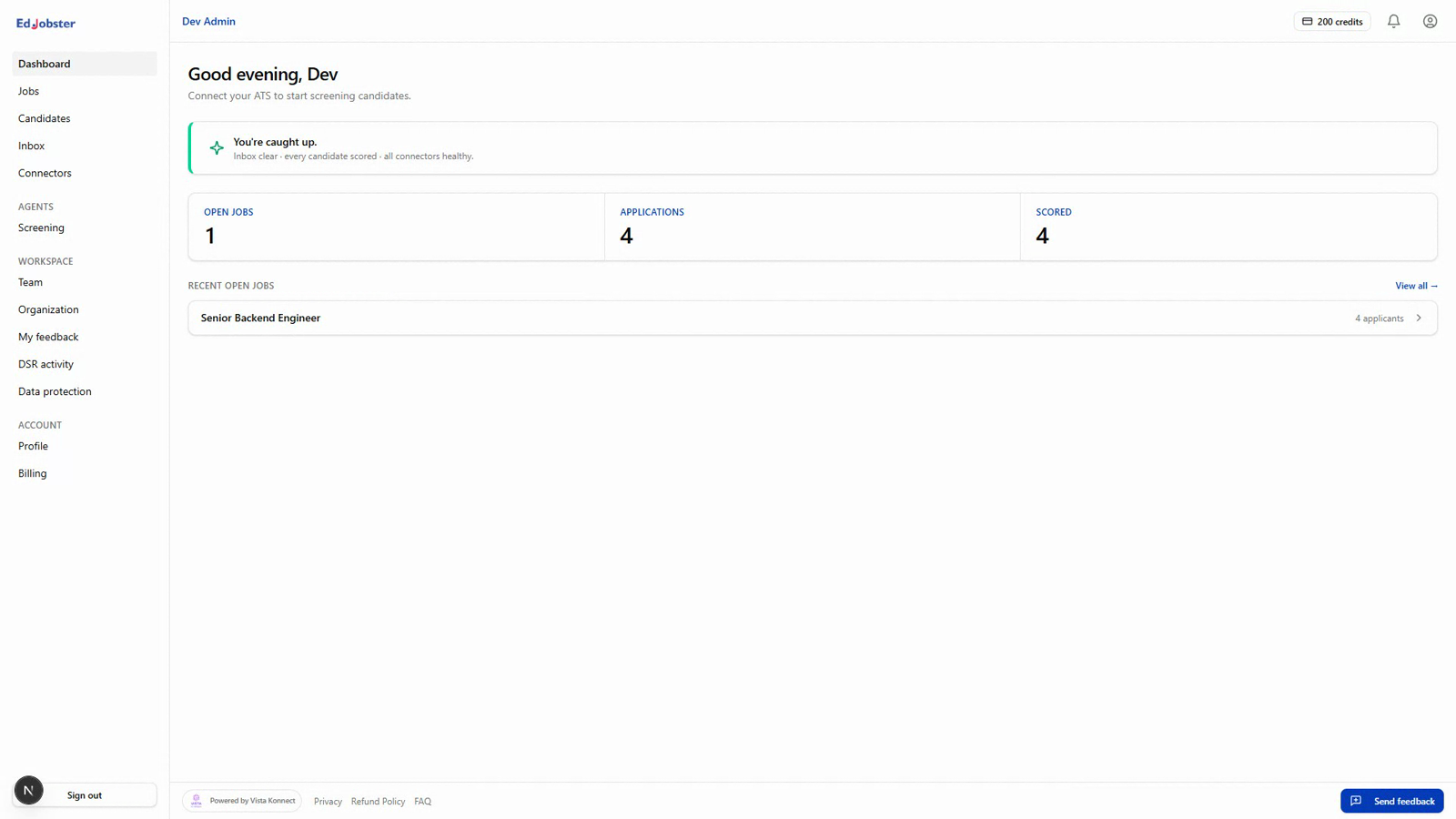
Edjobster sits alongside the hiring tools you already use and gives you one place to screen, schedule and follow up with applicants. Here's a quick walk through the main areas, starting with the home page you land on each day.
Before you start
You're signed in to the Edjobster dashboard.
Setup steps
1
The left navigation
The daily loop sits at the top of the menu: Dashboard, Inbox, Jobs, Candidates, Scheduling and Tasks. Below it, Hiring tools (screening runs, the JD directory, analytics, email templates), then Workspace settings, Privacy and Account. Badges on Inbox, Scheduling and Tasks count what is waiting for you, and admins also see a badge on Email templates for drafts waiting for their approval. Which groups you see depends on your role.
2
Today
The home page opens on your day: interviews at their times, tasks that are due or overdue, and email replies waiting for an answer. Each row takes you to where you act on it. The My work / Whole team switch at the top decides whether you see only your own interviews and tasks or everyone's, and remembers your choice.
3
Needs you and Pipeline
Below the day, Needs you lists everything waiting on a person: applications to triage, candidates to score, interview outcomes to record, approvals and reviews. Pipeline shows how many active applications sit at each stage, from Applied to Hired. Workspace owners also get a short Workspace line with connection health and the plan when either needs attention.
4
Light or dark
The moon and sun icon in the header switches the app between light and dark. The choice is remembered on this browser.
5
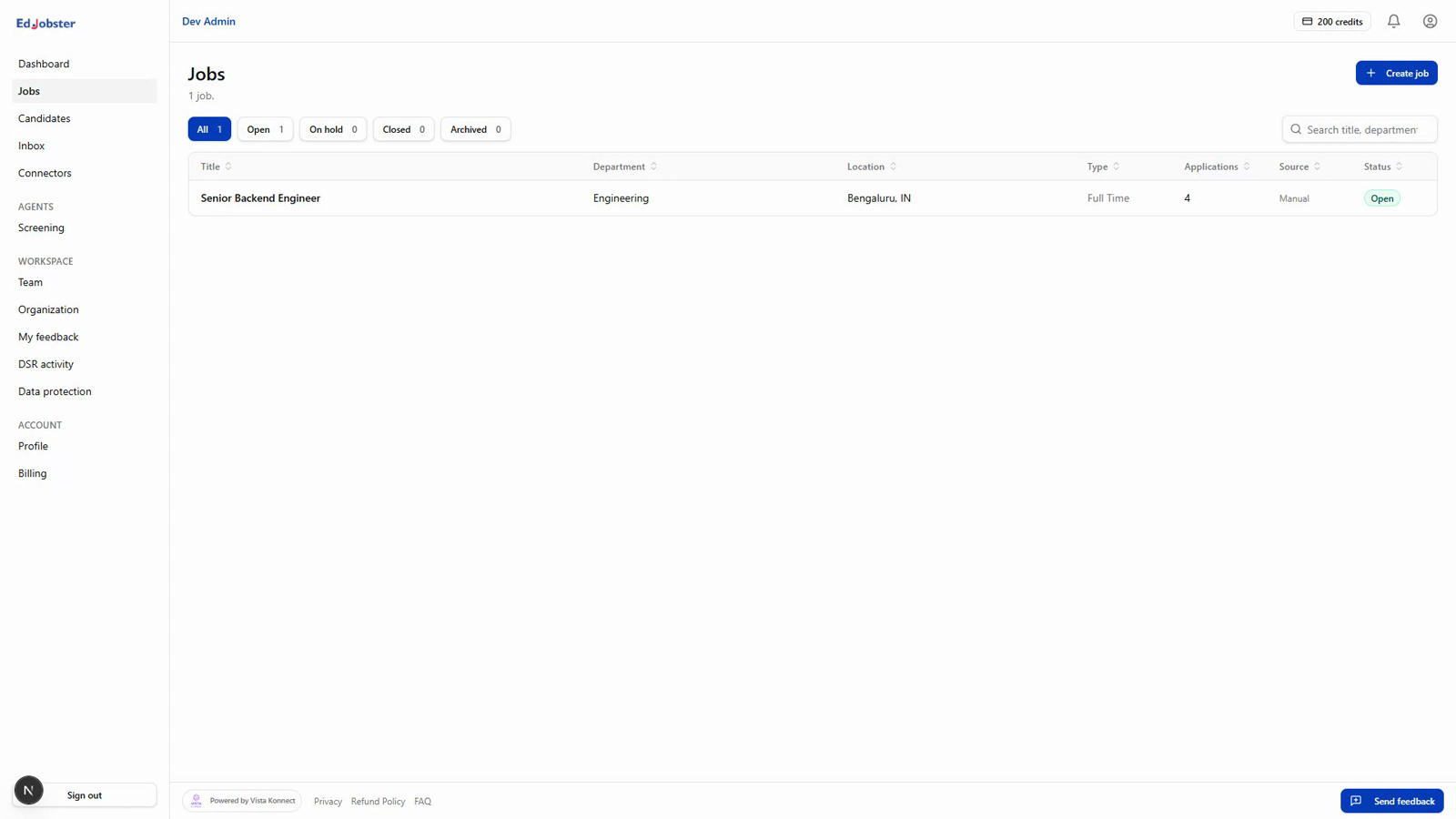
Jobs
Your open roles. Each job carries the screening rubric (the must-have and nice-to-have criteria) used to score its applicants.
6
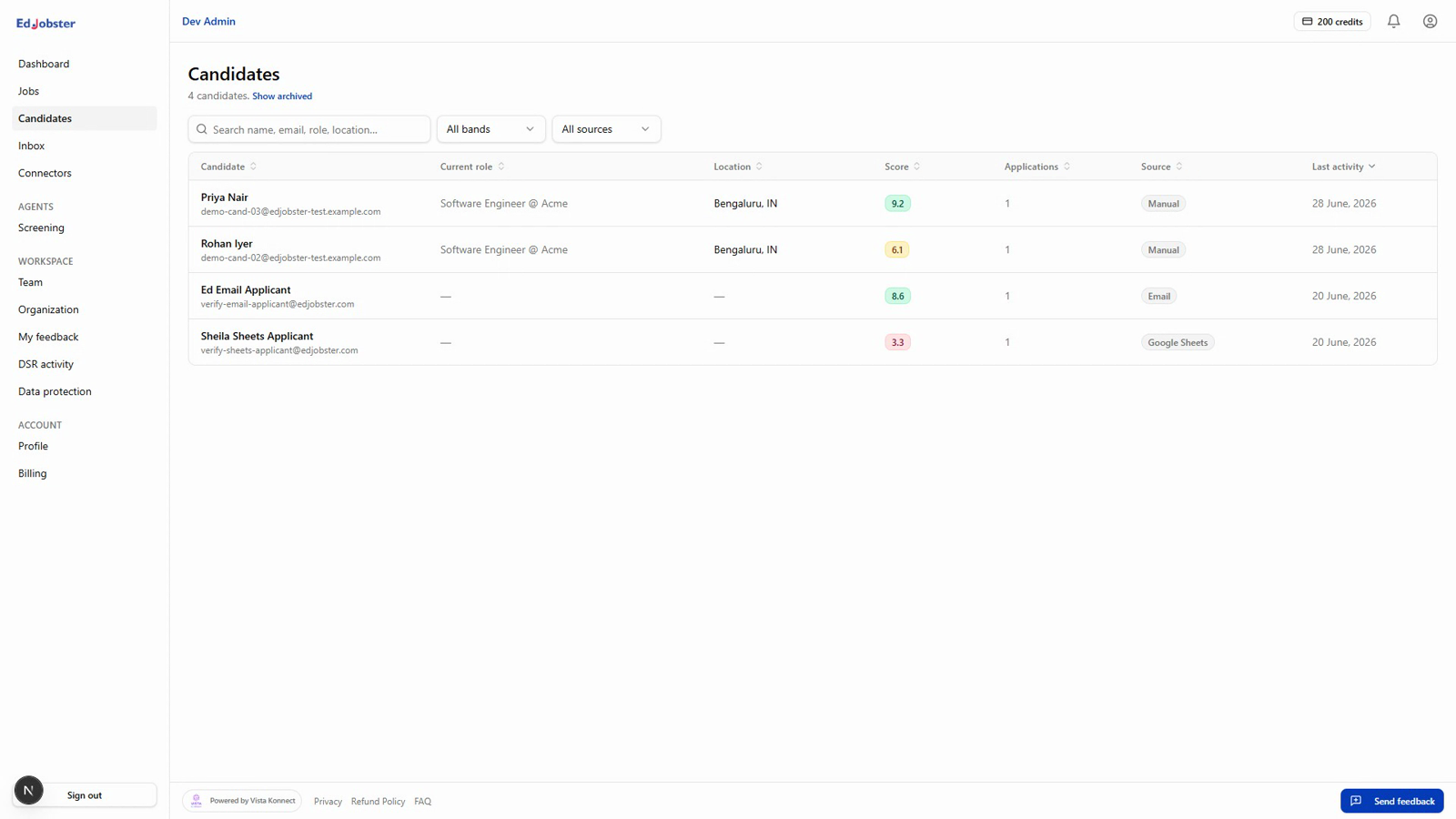
Candidates
Everyone pulled in from your connectors, searchable and grouped by score band, so your shortlist is one filter away.
7
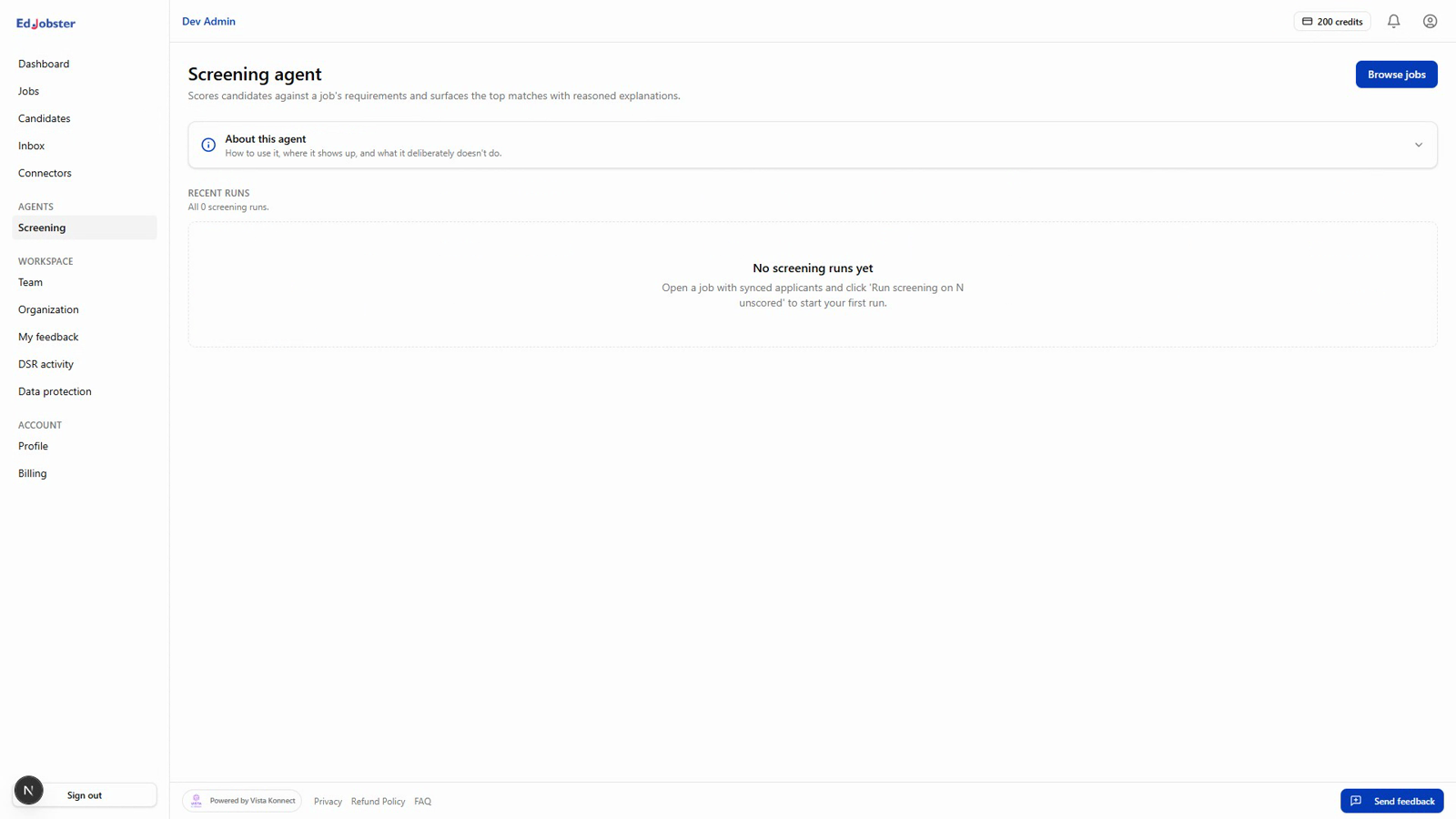
Screening
Run screening on a job's applicants and review the results: bands, criteria breakdown, and written reasons.
8
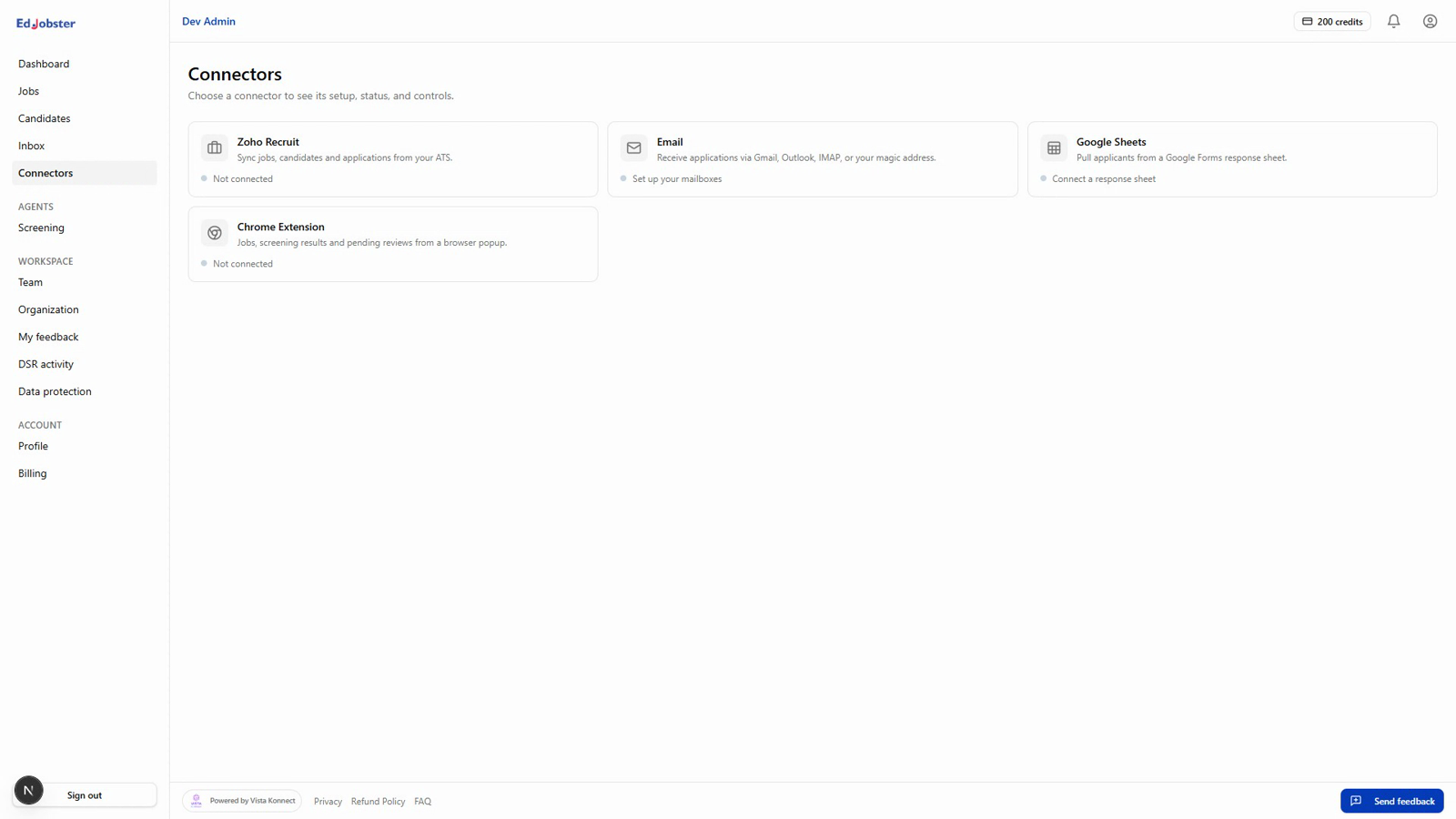
Connectors
Connect your ATS, your inbox, a Google Sheet, or the Chrome extension. See the connector guides for each one.
9
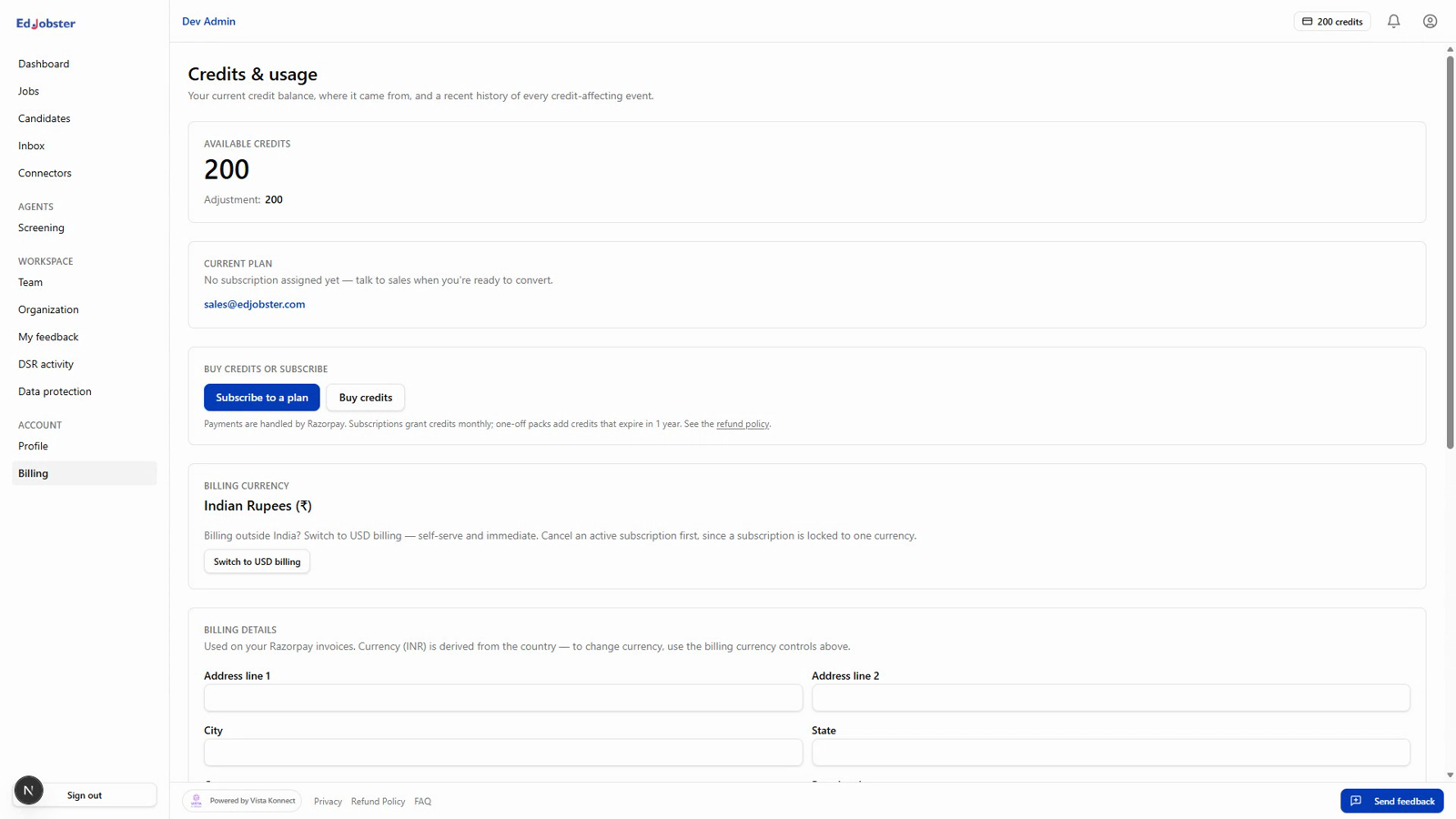
Billing & usage
Your plan, credits remaining, top-ups, and invoices all live here.
Verify it worked
You know where your day starts (Today), where the waiting work is listed (Needs you), and where jobs, candidates, screening, connectors and billing live.
Troubleshooting
Some menu items aren't showing.
Menus are gated by your plan and role. The ATS connectors (Zoho Recruit) and some team features appear only on the plans and roles that include them. Ask your workspace owner if you expect to see one that's missing.