Edjobster's access is read-only. It never sends mail from your mailbox, and only reads the one label you choose.
Before you start
You can sign in to the Google account whose inbox you want to connect.
Applications arrive in, or can be filtered into, a specific Gmail label. Edjobster reads only the label you pick, not your whole inbox.
The mailbox isn't already connected to another workspace (a mailbox connects to one workspace at a time).
Setup steps
1
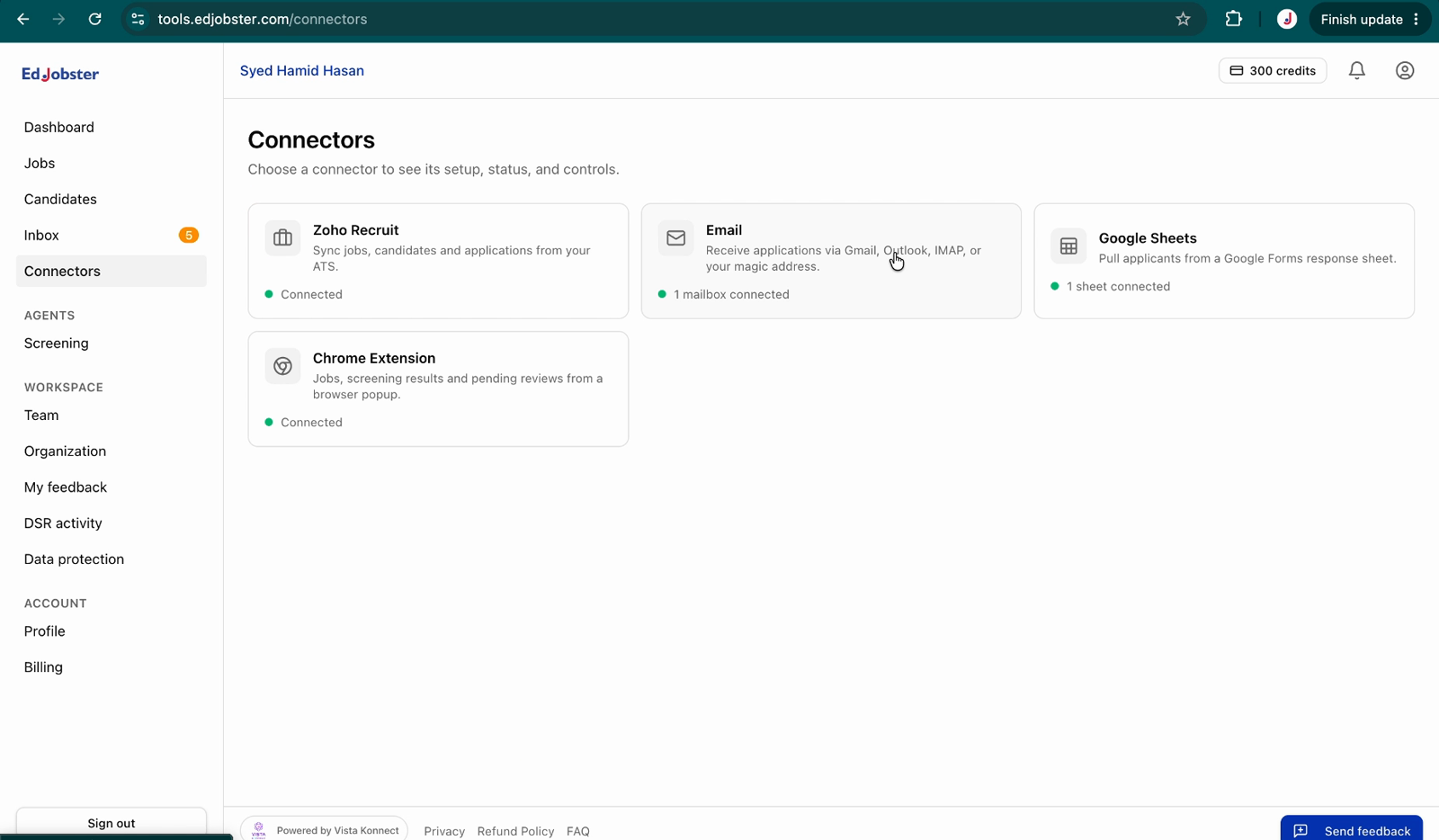
Open the Email connector
From the left navigation, open Connectors and choose the Email tile.
2
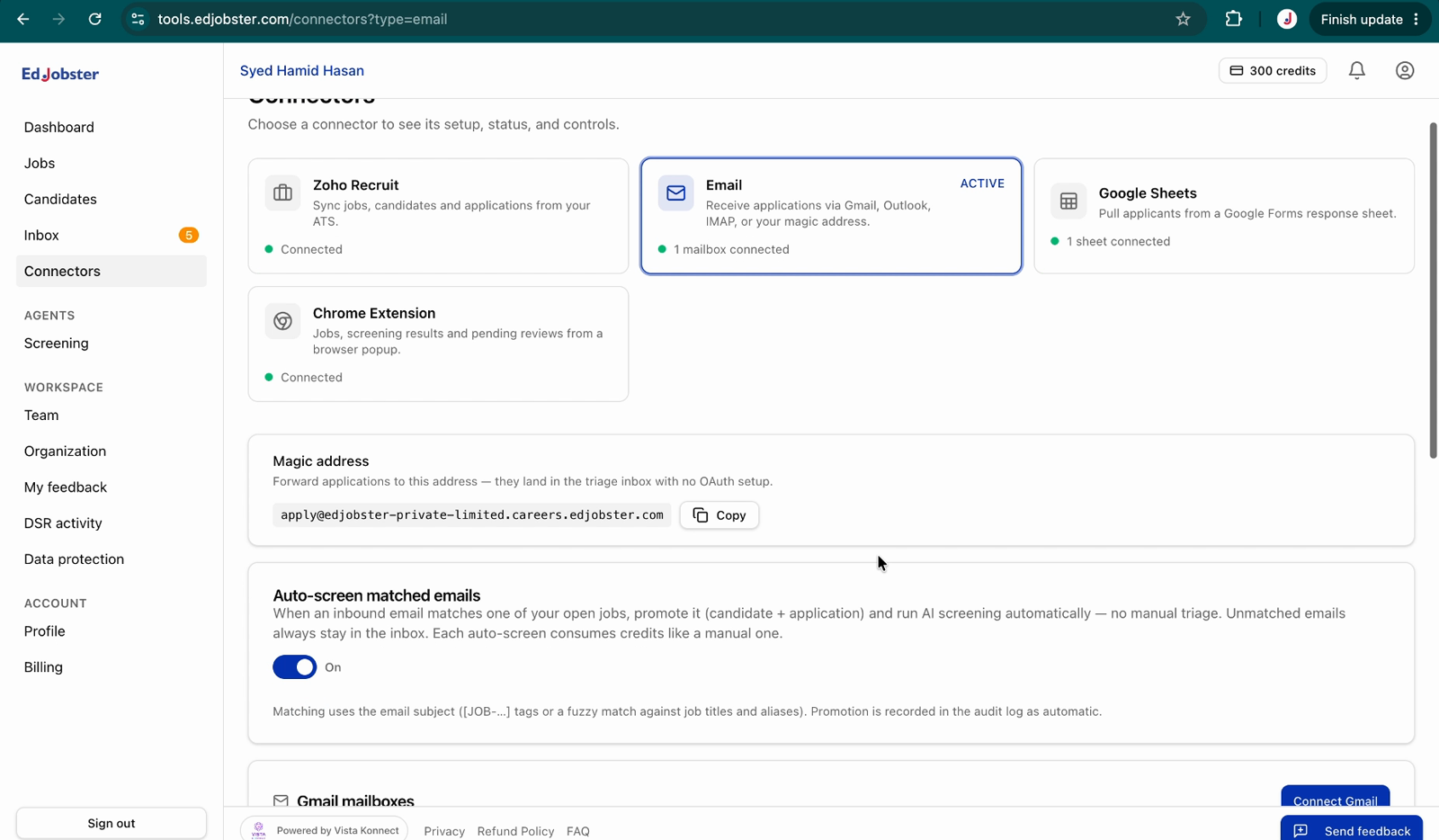
Click Connect Gmail
Select Connect Gmail. You'll be taken to Google's sign-in.
3
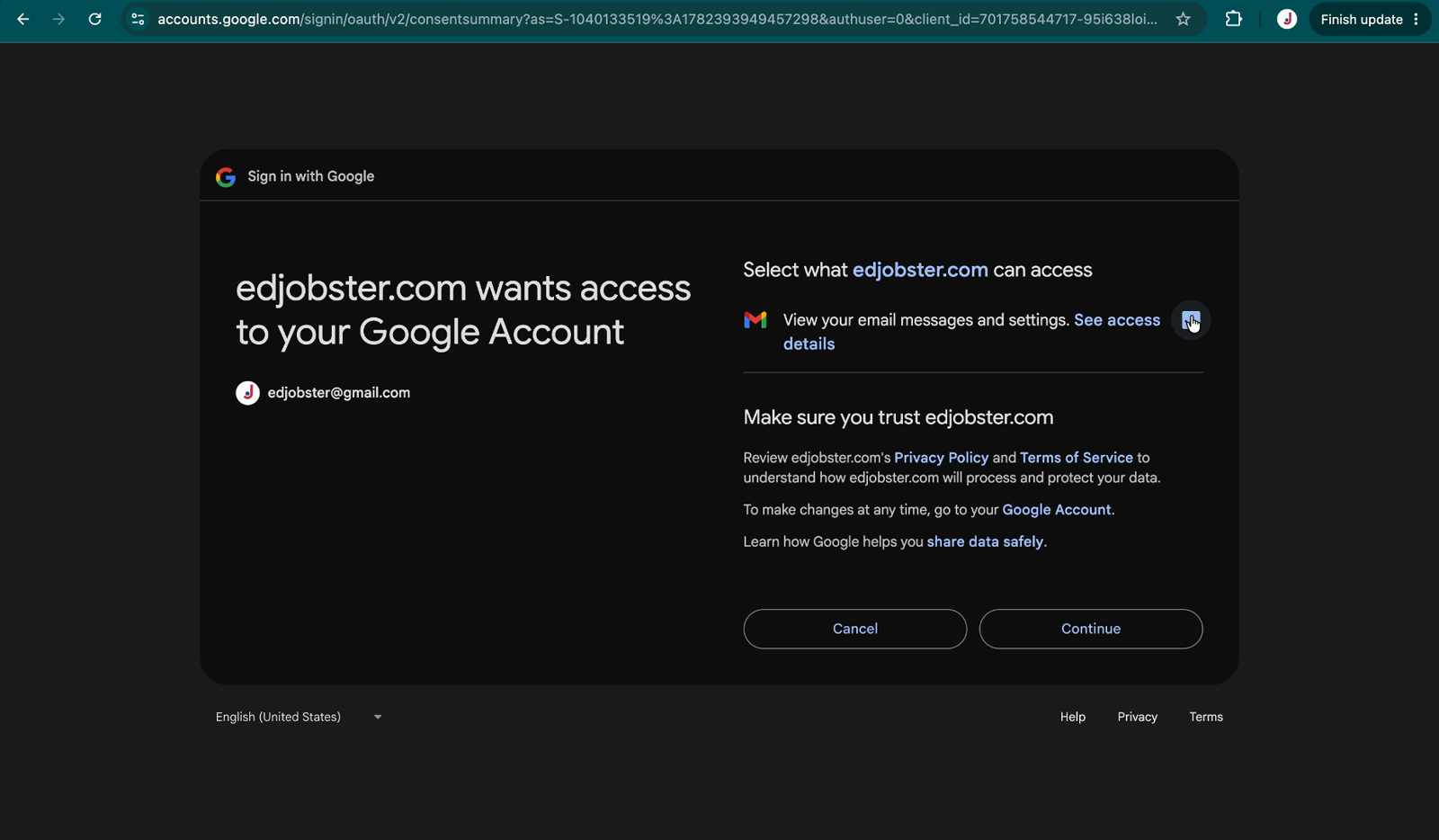
Approve read-only mail access
Sign in and approve the read-only mail permission Google asks for. That permission is what lets Edjobster read the label you choose next, nothing more.
4
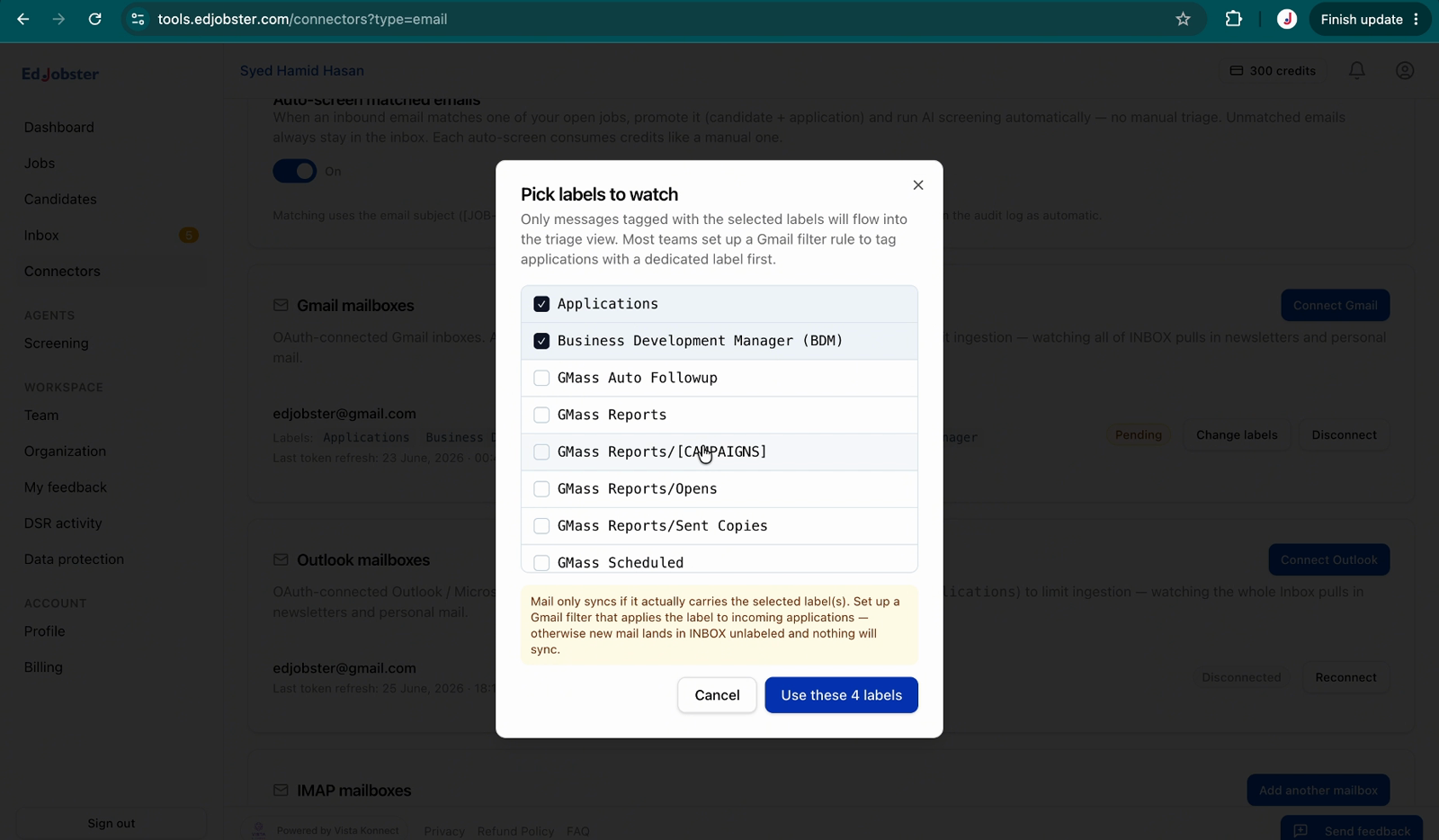
Pick the label to watch
Back in Edjobster, choose the label where your applications arrive, then confirm.
Not sure which label? In Gmail, create a filter that moves applications to a label like Applications, then point Edjobster at that.
Verify it worked
The Email connector now lists your mailbox as Connected with the label you chose. Edjobster fetches the most recent messages right away, then keeps watching that label. Use Sync on the mailbox to pull immediately if you don't want to wait.
Troubleshooting
Connected, but nothing is coming in.
Edjobster only reads the label you picked. Confirm applications actually land there. A Gmail filter may be moving them elsewhere. Change the label in the connector settings, or hit Sync to pull now.
“Already connected”: can't connect the mailbox.
That mailbox is connected to another workspace. Disconnect it there first. A mailbox maps to one workspace at a time.
It synced for a while, then stopped.
The connection can lapse when Google's access token expires. The mailbox card shows a “needs attention” state. Reconnect to refresh it.
The connection was rejected.
If the read-mail permission wasn't approved during sign-in, Edjobster can't read the label and rejects the connection. Reconnect and approve it.