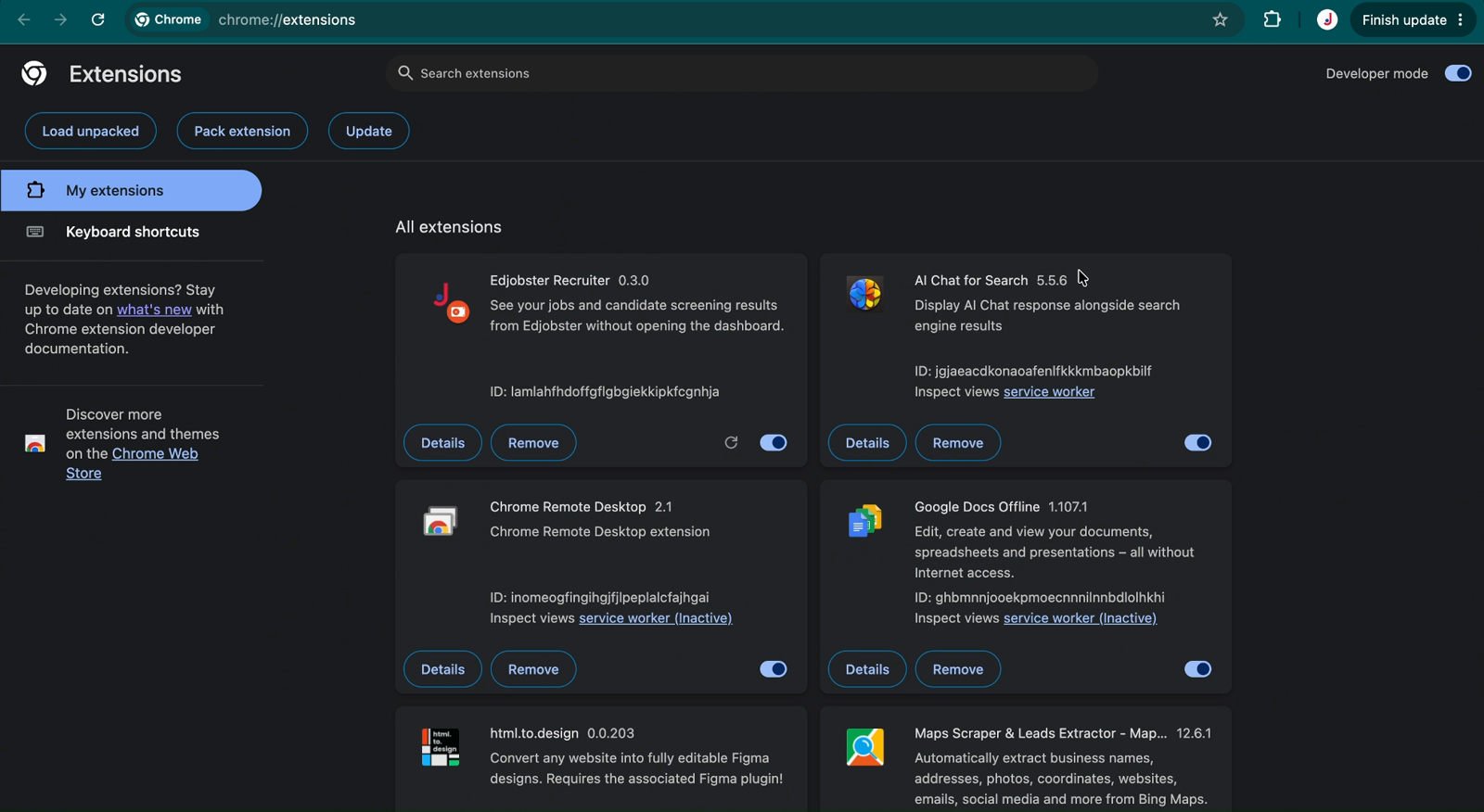
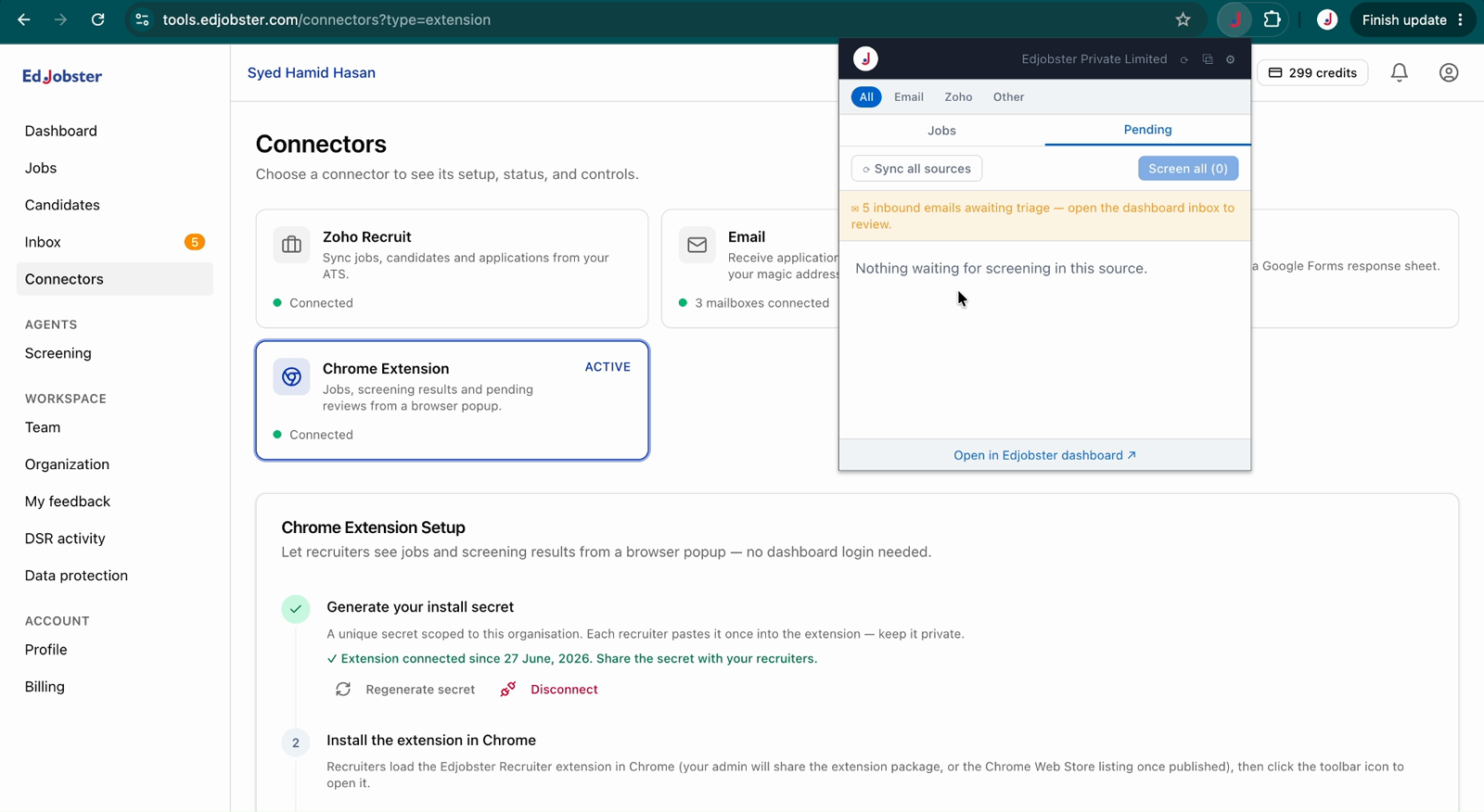
See jobs, applicants grouped by score band, and full screening detail, and run screening, all from a browser toolbar popup without opening the dashboard.
The Edjobster Hiring Agent extension is a toolbar popup: click the icon anywhere in your browser to open a mini-dashboard of jobs, applicants by band, and screening controls. Each recruiter signs in with their own Edjobster login, so actions are attributed to the right person.
Before you start
Your Edjobster email and password (the same ones you use for the dashboard).
Chrome, or another Chromium browser with extension support.
Setup steps
1
Add it to Chrome
Open the Edjobster Hiring Agent listing on the Chrome Web Store and click Add to Chrome. Pin the Edjobster icon from the puzzle-piece menu for one-click access. (Self-hosted deployment? Your admin shares an extension package to load unpacked instead, and they'll walk you through it.)
2
Sign in
Click the Edjobster toolbar icon and enter your email and password. Forgot it? Use the reset link in the popup. New to Edjobster? Request a trial right from there.
3
Use the popup
The Jobs tab drills from jobs → applicants by band → screening detail, with Screen / Re-Screen. The Pending tab shows applications awaiting a first screening. Source chips (All, Email, Zoho, Sheets, Other) filter the view, and Sync all sources refreshes every connected source on demand.
Verify it worked
Click the toolbar icon and your jobs appear, with applicants grouped Strong / Marginal / Weak / Unscored. Open a candidate and you can screen or re-screen them right there.
Troubleshooting
“Invalid email or password” at sign-in.
Use your dashboard email and password. If you've forgotten it, click Forgot password? in the popup to reset.
The popup drops back to the sign-in screen later.
Your session expired or was revoked, for example because you changed your password or an admin suspended the workspace. Sign in again.
“Your screening access is paused”.
The workspace is in trial-expired or payment lockdown. Viewing still works, and screening resumes once billing is settled.
The Screen button is disabled with “No CV text on file”.
That applicant has no resume text yet. If it came by email, promote it with the attachment first, then screen.