Edjobster's access is read-only. It only reads the folder you choose and never sends mail.
Before you start
IMAP access is enabled on the mailbox.
The server settings: host and port (almost always 993 with TLS), your username, and a password.
An app password if the account has two-factor authentication on. Most providers require one for IMAP.
Setup steps
1
Open Add IMAP mailbox
Go to Connectors → Email and choose Add IMAP mailbox.
2
Enter the server settings
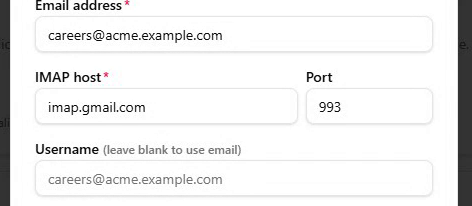
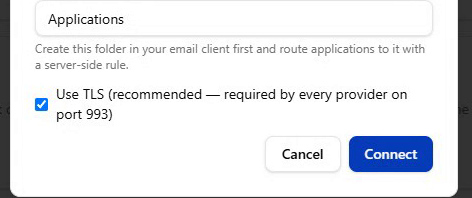
Fill in the host (e.g. imap.gmail.com), port993, leave Use TLS on, and enter your username (usually the full email address).
Common hosts: Gmail imap.gmail.com, Outlook / Microsoft 365 outlook.office365.com, Zoho imap.zoho.com (or .eu / .in for those regions), FastMail imap.fastmail.com. All use port 993 with TLS.
3
Enter the password
Enter the mailbox password, or an app password if two-factor authentication is on. Create app passwords in your email provider's security settings.
4
Choose the folder and save
Pick the folder Edjobster should watch (INBOX always works), then save. Edjobster runs a quick connection check before saving, so you find out immediately if a setting is wrong.
Verify it worked
The mailbox shows as Connected. Edjobster starts watching from the moment you connect (it doesn't import old history), so applications that arrive after setup flow in. Use Sync to check the connection.
Troubleshooting
“Couldn't reach that server”.
The host or port couldn't be reached. Check the hostname spelling and that the port is 993, and that no firewall is blocking it.
“Login was rejected”.
Almost always the wrong password, or the account needs an app password (create one in your provider's security settings). If your organisation has disabled basic IMAP access entirely, connect via the Outlook option instead.
“The server has no folder at that path”.
The folder name didn't match. Use INBOX, or check the exact folder name in your mail client.